
14. Troubleshooting
First of all, when you run into problems starting StoryScript or with the StoryScript main code, make sure to update your GitHub fork, pull the changes and rerunning npm install to make sure you have all the latest fixes and dependencies!
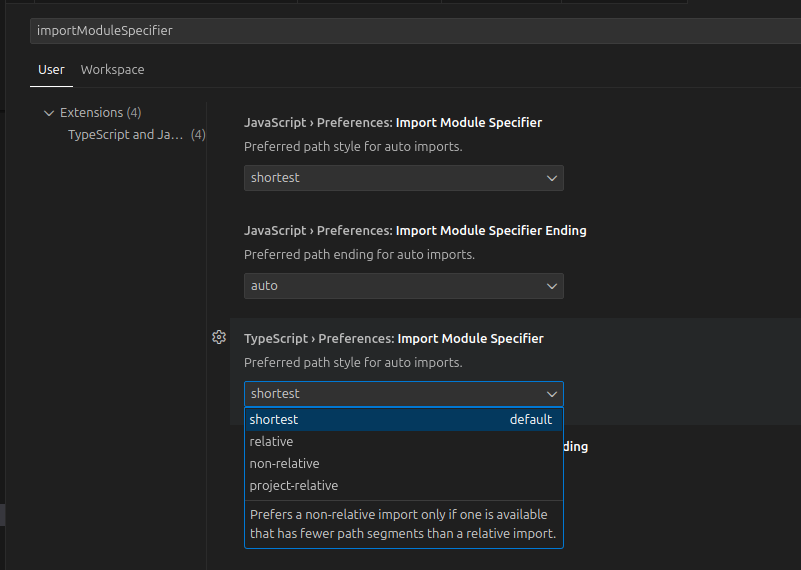
Also make sure your IDEs TypeScript settings for relative imports are correct. For example, VS Code will try to resolve modules automatically using both relative and absolute paths. The latter doesn’t work with StoryScript, so you should tell VS Code to always use relative imports. Search the settings for ‘importModuleSpecifier’ and set the TypeScript one to shortest or relative when it isn't one of these already:
Working with TypeScript will help you catch compile-time problems in your code right away. That's a great help, but as soon as you start coding you will start introducing bugs. And these bugs need eradicating. And it could be that you happen to find an issue within StoryScript itself that needs addressing!
Luckily, debugging StoryScript code can be done right from the browser. Both your own and the StoryScript engine's. For this, you can use the developer tools Sources view, which works really great in Chromium-based browsers. If you haven't worked with these developer tools before, check out the chrome developer documentation. You should be able to pinpoint exactly where an issue occurs using the Sources view and the Console error messages.
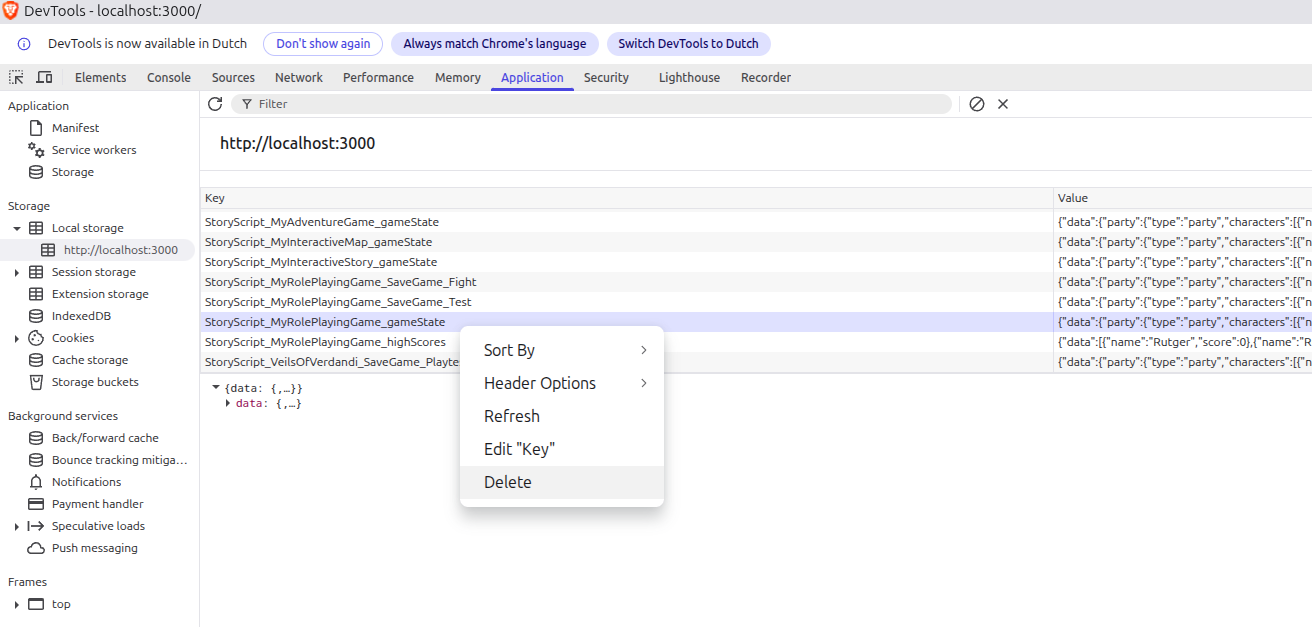
You could also run into issues with the stored world state at a certain moment. This can lead to errors or unexpected behaviour or your game not loading at all and showing only a blank screen. When this happens, try these three options:
- Press the Reset world button
- Start a new game
- Open the Developer tools' Application tab and clear the local storage to remove all saved state. Or, better, remove only the item called StoryScript_YourGameName_gamestate:
Also, be aware that there are some properties whose state is not saved to the game state. They will be refreshed from your game's HTML source files on each browser refresh for a better editing experience. Changes done to them through code won’t be
saved. Don't update these properties from your code:
- Any properties called ‘description’ or ‘descriptions’ (on locations, enemies, etc.).
- Any properties on conversation nodes.
A note on actions added during runtime
In tutoral 8, I added a trap door barrier to the Garden location with an inspect action at run-time. Because of the way StoryScript handles saving the game state, please be aware that actions added during run-time will be treated slightly different from actions that are present at design-time. Make sure that any actions you add once the game is running are self-contained, meaning they should only reference arguments passed into them or use variables defined in them, and not anything else!